
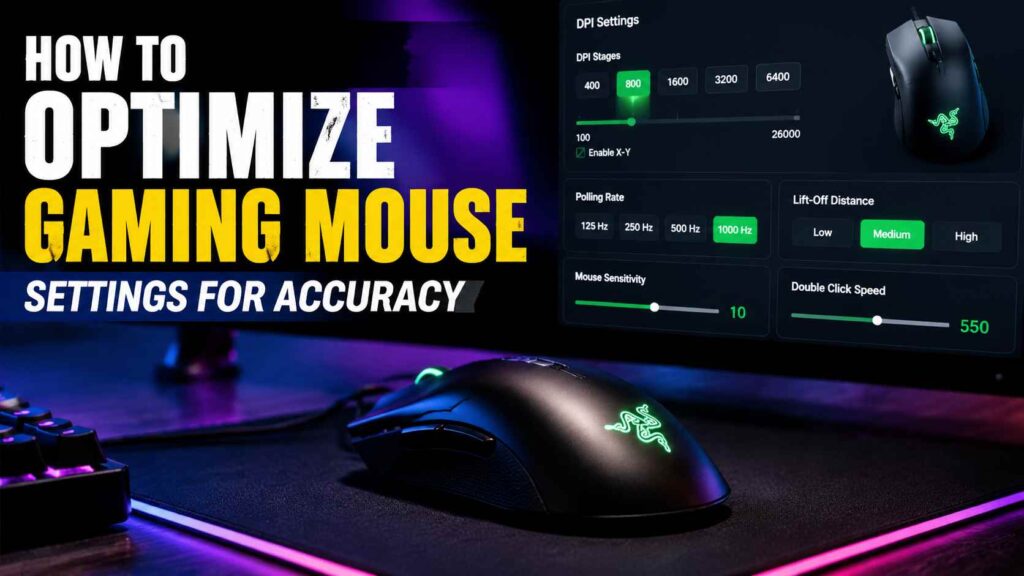
Aiming accuracy in gaming depends on more than just having an expensive mouse—it depends on using the right configuration. Learning how to optimize gaming mouse settings is essential for improving precision, reducing inconsistent movements, and achieving better control during gameplay. Many gamers struggle with missed shots, slow reactions, and uncomfortable sensitivity because their DPI, polling rate, and mouse acceleration settings are not properly adjusted.
This guide explains the key settings you need to adjust and provides practical steps to create a smoother, more responsive gaming experience. Whether you play competitive FPS games or casual titles, optimizing your gaming mouse settings can help you build better consistency and confidence with every movement.
Understand the Main Gaming Mouse Settings
Before changing anything, it is important to understand what each mouse setting controls. Several settings affect cursor speed, but they do not all work in the same way.
DPI
DPI stands for dots per inch. In gaming mouse software, it describes how far the cursor moves in response to physical mouse movement.
A higher DPI makes the cursor travel farther with a smaller hand movement. A lower DPI requires more physical movement to cover the same distance.
For example:
- At 400 DPI, the mouse requires relatively large movements.
- At 800 DPI, the pointer travels twice the distance on the screen compared to when using 400 DPI.
- At 1600 DPI, smaller physical movements produce faster cursor movement.
A high maximum DPI number does not automatically mean better accuracy. Most players never need the maximum DPI supported by their mouse.
In-Game Sensitivity
In-game sensitivity is the multiplier applied by the game to your mouse input. It works together with DPI.
Two players can use different DPI values while maintaining similar overall sensitivity. For example, one player might use 400 DPI with a sensitivity of 2.0, while another uses 800 DPI with a sensitivity of 1.0.
Polling Rate
The polling rate indicates how often a mouse sends updated position data to the computer. It is measured in hertz.
Common polling rates include:
| Polling Rate | Approximate Reporting Interval |
| 125 Hz | 8 milliseconds |
| 250 Hz | 4 milliseconds |
| 500 Hz | 2 milliseconds |
| 1000 Hz | 1 millisecond |
| 4000 Hz | 0.25 milliseconds |
| 8000 Hz | 0.125 milliseconds |
A 1000 Hz mouse can report its position up to 1,000 times per second. However, the reporting interval is only one part of total input latency. Responsiveness is influenced by several factors, including game optimization, monitor refresh rate, frame generation speed, USB communication, and overall system performance. Logitech similarly defines polling rate as the frequency at which the mouse sends its position to the computer.
Windows Pointer Speed
Windows pointer speed changes cursor movement at the operating-system level. Some games use raw input and bypass part or all of this processing, while other games may still be affected by Windows settings.
Mouse Acceleration
Mouse acceleration changes cursor distance according to movement speed. Moving the mouse quickly can produce more cursor movement than moving it slowly across the same physical distance.
This can be helpful for normal desktop use, but competitive players often disable it because it can make movement less predictable.
Lift-Off Distance
Lift-off distance is the height at which the sensor stops tracking when the mouse is lifted from the surface. A lower lift-off distance can prevent unwanted cursor movement while repositioning the mouse.
How to Optimize Gaming Mouse Settings Step by Step
The best results come from adjusting settings in a logical order. Start with the mouse software, configure Windows, adjust the game, and then test everything together.
Install the Correct Mouse Software
Most modern gaming mice include dedicated configuration software. Examples include Logitech G HUB, Razer Synapse, Corsair iCUE, SteelSeries GG, and software supplied by other manufacturers.
Install the official application for your model and check the following:
- Current DPI stages
- Polling rate
- Button assignments
- Sensor calibration
- Lift-off distance
- Angle snapping
- Motion synchronization
- Firmware version
- Onboard memory profiles
Update the mouse firmware before testing. Firmware updates can fix sensor behavior, wireless stability, button response, or compatibility problems.
Avoid running several peripheral applications unnecessarily. Multiple hardware-control programs operating in the background may increase resource usage or create profile conflicts.
Choose a Practical DPI Setting
There is no single DPI value that works for every player. However, 400, 800, and 1600 DPI are useful starting points because they provide manageable sensitivity ranges in most games.
Start With 800 DPI
For many players, 800 DPI provides a balanced baseline. It is fast enough for normal desktop navigation but still allows controlled in-game sensitivity.
Try 800 DPI first when:
- You are unsure where to begin.
- You play several types of games.
- You have medium mousepad space.
- Your current DPI feels extremely fast.
- You want a simple baseline for testing.
Consider 400 DPI for Large Arm Movements
A lower setting such as 400 DPI may suit players who use broad arm movements and have a large mousepad. It is common in tactical shooters where precise crosshair placement matters.
The disadvantage is that desktop navigation can feel slow, especially on high-resolution monitors.
Consider 1600 DPI for Faster Desktop Movement
A setting of 1600 DPI may work well on high-resolution displays or for players who prefer smaller wrist movements. In-game sensitivity should usually be reduced to compensate for the higher DPI.
Do not assume 1600 DPI is automatically less accurate than 800 DPI. The actual result depends on the sensor implementation, game input, sensitivity multiplier, and player control.
Remove Unnecessary DPI Stages
Gaming mice often include a button that cycles through several DPI presets. Accidentally pressing it during a match can completely change your aim.
Keep one primary DPI stage or a small number of clearly separated profiles. Disable unused stages when the software allows it.
Configure Windows Mouse Settings
Windows settings provide the operating-system baseline for mouse behavior.
To access mouse controls in Windows 11:
- Open Settings.
- Select Bluetooth & devices.
- Open Mouse.
- Adjust the mouse pointer speed if necessary.
- Open additional mouse settings for legacy pointer options.
Microsoft confirms that pointer speed can be changed through the Bluetooth and devices mouse menu.
Use the Default Pointer Speed as a Baseline
Start from the default or middle Windows pointer-speed position instead of using an extreme value. This creates a predictable baseline and reduces unnecessary operating-system scaling.
Some games with properly implemented raw input may bypass Windows pointer-speed processing. However, maintaining a sensible desktop setting still prevents inconsistency in menus, older games, and applications that do not use raw input.
Disable Enhance Pointer Precision
“Enhance pointer precision” is Windows mouse acceleration. It changes the relationship between physical movement and cursor distance according to movement speed.
To disable it through the classic settings interface:
- Open Mouse settings.
- Select Additional mouse settings.
- Open the Pointer Options tab.
- Clear Enhance pointer precision.
- Select Apply and then OK.
Disabling acceleration generally produces more repeatable movement in games that use Windows-processed input. However, raw-input implementations can behave differently, so the final result should be verified inside the game rather than assumed.
Select the Right Polling Rate
For most modern gaming systems, 1000 Hz is a strong default. It provides a reporting interval of approximately one millisecond without the heavier processing requirements associated with extremely high rates.
Use 500 Hz on Older or Unstable Systems
Try 500 Hz when:
- The game stutters during rapid mouse movement.
- CPU usage is already high.
- The mouse has inconsistent wireless performance.
- You use an older system.
- A specific game handles 1000 Hz poorly.
The noticeable improvement between 500 Hz and 1000 Hz polling rates can be minimal when using a low-refresh-rate monitor or a system with inconsistent frame delivery.
Use 1000 Hz for Most Competitive Games
A 1000 Hz polling rate is appropriate for most competitive FPS, battle royale, MOBA, and action games. It offers responsive input and is widely supported.
Test 4000 Hz and 8000 Hz Carefully
Higher polling rates can reduce the interval between reports, but they also generate more USB input events. This may increase CPU demand and reduce wireless battery life.
A 4000 Hz or 8000 Hz setting is most useful when the complete system can support it, including:
- A modern processor
- A high-refresh-rate monitor
- Stable frame delivery
- Compatible game input
- A suitable USB receiver or cable
- Updated mouse firmware
Do not select 8000 Hz simply because it is the maximum available. If frame pacing becomes unstable, 1000 Hz may deliver a better overall experience.
Enable Raw Mouse Input
Raw input allows a game to read mouse data more directly instead of relying entirely on Windows cursor processing.
The setting may appear as:
- Raw Input
- Raw Mouse Input
- Direct Mouse Input
- Use Raw Input
Enable it when the game supports it, especially in competitive shooters. Raw input can reduce the influence of desktop pointer settings and provide more consistent sensitivity.
After enabling it, test the game carefully. Issues such as improper raw input handling, software incompatibilities, overlay interference, or outdated game engines may still cause unexpected performance problems.
Adjust In-Game Sensitivity
Once DPI and Windows settings are stable, configure sensitivity inside the game.
Start with a moderate value and test these actions:
- Tracking a moving target
- Making small crosshair corrections
- Turning 180 degrees
- Switching between nearby targets
- Controlling recoil
- Following targets at different distances
A sensitivity that feels fast during casual movement may become difficult to control during precise aiming. A sensitivity that feels accurate during slow practice may be too low for close-range fights.
The ideal setting balances speed and precision.
Use eDPI for Same-Game Comparisons
Effective DPI, commonly called eDPI, is calculated with this formula:
eDPI = Mouse DPI × In-Game Sensitivity
For example:
- 800 DPI × 0.5 sensitivity = 400 eDPI
- 400 DPI × 1.0 sensitivity = 400 eDPI
These configurations may produce similar sensitivity within the same game.
However, eDPI should not be used to compare different games directly. Games use different sensitivity scales, field-of-view systems, camera behavior, and engine calculations.
Measure Centimeters per 360 Degrees
A more transferable measurement is centimeters per 360 degrees, often written as cm/360. It measures how far the mouse must move physically to rotate the in-game camera through one complete turn.
A higher cm/360 value means lower sensitivity. A lower cm/360 value means higher sensitivity.
This measurement is useful when transferring settings between FPS games, but differences in field of view and aiming mechanics can still affect how sensitivity feels.
Optimize Settings for Different Game Genres
Different games place different demands on mouse movement. One profile may not be ideal for every genre.
FPS and Tactical Shooters
Games involving precise crosshair placement usually benefit from controlled sensitivity.
Suggested starting configuration:
- DPI: 400–800
- Polling rate: 1000 Hz
- Raw input: Enabled
- Pointer acceleration: Disabled
- Angle snapping: Disabled
- In-game sensitivity: Low to moderate
Players with limited desk space may need a somewhat higher sensitivity.
Fast-Paced Arena and Battle Royale Games
These games often require quick turns, vertical tracking, close-range movement, and rapid target switching.
Suggested starting configuration:
- DPI: 800–1600
- Polling rate: 1000 Hz
- Raw input: Enabled
- Sensitivity: Moderate
- Separate aim-down-sight sensitivity: Adjust carefully
Do not reduce sensitivity so far that close-range movement becomes physically uncomfortable.
MOBA and Strategy Games
MOBA and real-time strategy games involve fast cursor travel across the screen, repeated clicks, and precise selection.
Suggested starting configuration:
- DPI: 800–1600
- Polling rate: 500–1000 Hz
- Pointer speed: Moderate
- Side buttons: Abilities, items, camera controls, or communication
- Acceleration: Based on preference
Higher sensitivity can be practical because these games rely on screen navigation rather than continuous first-person aiming.
MMO and RPG Games
MMO players may benefit more from button configuration than from extremely low latency.
Use side buttons for:
- Frequently used abilities
- Consumable items
- Target selection
- Mounts
- Inventory actions
- Push-to-talk
- Modifier keys
Avoid assigning every possible action immediately. Too many bindings can create confusion and accidental inputs.
Disable Angle Snapping and Artificial Smoothing
Angle snapping attempts to straighten mouse movement. It may help with drawing straight lines, but it can interfere with natural aim corrections.
Disable angle snapping for most competitive games.
Sensor smoothing filters movement to reduce noise. Modern gaming sensors generally perform well without heavy smoothing at practical DPI levels. If the mouse software offers adjustable smoothing, begin with the lowest setting or disable it.
The names of these options vary between manufacturers, and some mice control them automatically.
Configure Lift-Off Distance
Players who use low sensitivity frequently lift and reposition the mouse. If the lift-off distance is too high, the cursor may continue moving while the mouse is being repositioned.
Select a low or medium lift-off distance and test it on your actual mousepad.
Do not automatically choose the lowest setting if tracking becomes unstable. Sensor performance can vary according to surface texture, color, reflectivity, and calibration.
Calibrate the Mouse Surface
Some gaming mouse applications include surface calibration. This feature adjusts sensor behavior for a specific mousepad.
Run calibration when:
- Tracking feels inconsistent.
- The cursor skips during fast movement.
- You recently changed mousepads.
- Lift-off behavior is unstable.
- The surface is unusually glossy or textured.
Keep the mousepad clean. Dust, hair, moisture, and worn areas can affect sensor tracking. Also inspect the sensor opening and mouse feet without touching the sensor lens unnecessarily.
Optimize Wireless Gaming Mouse Performance
Modern 2.4 GHz gaming mice can provide low-latency performance, but receiver placement and wireless interference still matter.
For better wireless stability:
- Use the manufacturer’s gaming receiver.
- Place the receiver close to the mousepad.
- Use the included extension adapter when available.
- Keep the receiver away from crowded USB hubs.
- Avoid placing it directly beside strong wireless transmitters.
- Maintain sufficient battery charge.
- Update receiver and mouse firmware.
Bluetooth is convenient for general use, but a dedicated 2.4 GHz gaming connection is usually more appropriate for latency-sensitive gameplay when the mouse supports both modes.
Configure Mouse Buttons Intelligently
Additional buttons should reduce keyboard movement without creating accidental clicks.
Useful assignments include:
- Push-to-talk
- Melee attack
- Reload
- Map
- Ping
- Ability
- Weapon switch
- Inventory
- DPI shift for temporary precision
Avoid binding critical actions to buttons that are difficult to press without changing your grip.
After creating a profile, save it to onboard memory when supported. This allows the mouse to retain important settings even when the configuration software is closed or the mouse is connected to another computer.
Check Debounce and Click Settings
Some gaming mice allow users to adjust debounce time. Debouncing prevents one physical click from registering as several clicks.
A lower debounce setting may reduce click delay, but setting it too low can produce double-clicking or unreliable input.
Use the manufacturer’s default setting unless you have a specific reason to change it. After lowering debounce time, test single clicks, rapid clicks, drag actions, and click-and-hold behavior.
Match Mouse Settings With Display Performance
Mouse optimization cannot compensate for unstable game performance. A responsive mouse may still feel delayed when the game has low frame rates, inconsistent frame times, excessive rendering latency, or display synchronization problems.
For more consistent input:
- Maintain a stable frame rate.
- Use an appropriate monitor refresh rate.
- Reduce settings causing severe frame drops.
- Close unnecessary background applications.
- Use a stable fullscreen or borderless mode according to the game.
- Check whether overlays are creating input problems.
A stable 144 frames per second can feel more responsive than an average of 200 frames per second with frequent drops and poor frame pacing.
Test Settings Instead of Guessing
Do not judge a configuration after only a few seconds. Use a repeatable testing process.
Create a Baseline
Record your current:
- DPI
- Polling rate
- Windows pointer speed
- Pointer acceleration status
- In-game sensitivity
- Aim-down-sight multiplier
- Scope multipliers
- cm/360 measurement
This makes it easy to return to the original configuration.
Change One Setting at a Time
Changing DPI, sensitivity, polling rate, and acceleration simultaneously makes it impossible to identify which adjustment improved or damaged performance.
Change one variable, test it, and record the result.
Use Repeatable Drills
Test:
- Small-target clicking
- Smooth horizontal tracking
- Vertical tracking
- Rapid target switching
- 90-degree and 180-degree turns
- Recoil control
- Normal matches
Aim trainers can provide useful measurements, but they should not be the only test. Movement, weapon mechanics, field of view, and pressure during real matches affect performance differently.
Keep the Setting Long Enough
Minor discomfort is normal after changing sensitivity. Avoid adjusting it after every poor match.
Use the same configuration for several sessions unless it is clearly too fast, too slow, unstable, or physically uncomfortable.
Common Gaming Mouse Optimization Mistakes
Copying Professional Players Exactly
Professional settings provide references, not guaranteed solutions. A professional player may use a different mouse, grip, resolution, field of view, desk size, posture, and training routine.
Using the Maximum DPI
Extremely high DPI values are rarely necessary. They can make desktop movement difficult and force the in-game sensitivity slider toward unusually low values.
Constantly Changing Sensitivity
Frequent changes prevent consistent movement patterns from developing. Make small adjustments and evaluate them over time.
Assuming Higher Polling Is Always Better
Higher polling rates reduce report intervals, but they may increase CPU load, battery consumption, or compatibility problems. Use the highest rate that remains stable rather than selecting the largest number available.
Ignoring Physical Comfort
A technically responsive configuration is not useful if it causes wrist tension, shoulder fatigue, or an awkward grip. Desk height, chair position, mouse shape, mouse weight, and available movement space also matter.
Recommended Starting Settings
The following table provides starting points rather than fixed rules:
| Setting | Recommended Starting Point |
| DPI | 800 |
| Polling rate | 1000 Hz |
| Windows pointer speed | Default or middle position |
| Enhance pointer precision | Off for consistent gaming input |
| Raw input | On when supported |
| Angle snapping | Off |
| Lift-off distance | Low or medium |
| Sensor smoothing | Off or minimum |
| DPI stages | One primary stage |
| In-game sensitivity | Moderate, then adjust gradually |
| Wireless mode | Dedicated 2.4 GHz connection |
| Firmware | Latest stable version |
Final Thoughts
Understanding how to optimize gaming mouse settings is less about finding a secret professional configuration and more about creating predictable input. Start with a practical DPI, use a stable polling rate, disable unnecessary acceleration, enable raw input where supported, and adjust in-game sensitivity through controlled testing.
The most effective settings are the ones you can use comfortably and consistently. Once you learn how to optimize gaming mouse settings for your hardware and game type, avoid unnecessary changes, record your configuration, and focus on developing repeatable movement rather than chasing larger specification numbers.
FAQs:
1. How to optimize gaming mouse settings for better accuracy?
To optimize gaming mouse settings, adjust important options like DPI, polling rate, sensitivity, and mouse acceleration. Start with a balanced setup, such as 800 DPI and 1000 Hz polling rate, then fine-tune your in-game sensitivity based on your comfort and playstyle.
2. What is the best DPI setting for gaming?
There is no single best DPI setting for every gamer. Most players use between 400 and 1600 DPI, while 800 DPI is a popular starting point because it provides a good balance between speed and control.
3. Should I use 400 DPI, 800 DPI, or 1600 DPI?
The right DPI depends on your gaming style and available mouse space. Lower DPI like 400 is useful for precise aiming with large movements, while 800 and 1600 DPI can provide faster cursor movement with smaller hand motions.
4. What polling rate should I use for my gaming mouse?
A 1000 Hz polling rate is a reliable choice for most modern gaming systems. Higher polling rates like 4000 Hz or 8000 Hz may offer lower input intervals but require stronger hardware and can increase system load.
5. Should I disable mouse acceleration for gaming?
Yes, most competitive gamers disable mouse acceleration because it changes cursor movement based on how quickly the mouse moves. Turning it off helps create more predictable and consistent aiming.
6. What is raw input in gaming mouse settings?
Raw input allows the game to receive mouse movement directly without relying heavily on Windows mouse processing. It can improve consistency by reducing the effect of system-level pointer settings.
7. How do DPI and in-game sensitivity work together?
DPI controls how far the cursor moves based on physical mouse movement, while in-game sensitivity controls how the game responds to that movement. Both settings combine to determine your overall aiming speed.
8. What is eDPI and how do I calculate it?
eDPI stands for effective DPI and shows your overall sensitivity level in a specific game. You can calculate it by multiplying your mouse DPI by your in-game sensitivity: DPI × In-game Sensitivity = eDPI.
9. Is higher DPI better for gaming?
Higher DPI is not always better for gaming. Accuracy depends on your complete setup, including sensitivity, mouse sensor quality, game settings, and personal control rather than DPI alone.
10. How can I improve my gaming mouse accuracy?
You can improve accuracy by using consistent sensitivity, disabling unnecessary acceleration, choosing a comfortable DPI, maintaining a clean mousepad, and practicing with the same settings to build muscle memory.
11. Does a mousepad affect gaming mouse performance?
Yes, a mousepad can affect tracking accuracy. A clean, consistent surface helps the sensor perform better and prevents problems like skipping or inconsistent movement.
12. Should I copy professional gamers’ mouse settings?
Professional settings can provide useful references, but they may not work perfectly for everyone. Your ideal settings depend on your mouse, grip style, monitor setup, game preference, and personal comfort.
13. How often should I change my gaming mouse settings?
Avoid changing settings too frequently because it prevents muscle memory development. Make small adjustments only when you notice a specific issue with speed, accuracy, or comfort.
14. Why does my gaming mouse feel slow or inaccurate?
A gaming mouse may feel slow or inaccurate because of incorrect DPI, sensitivity, acceleration settings, outdated firmware, poor surface calibration, wireless interference, or unstable game performance. Checking each setting can help identify the problem.
Continue Reading
Gaming Trends UggWorldTech: Future of Gaming Technology
Gaming Tips PBLinuxTech Complete Performance and Strategy Guide