
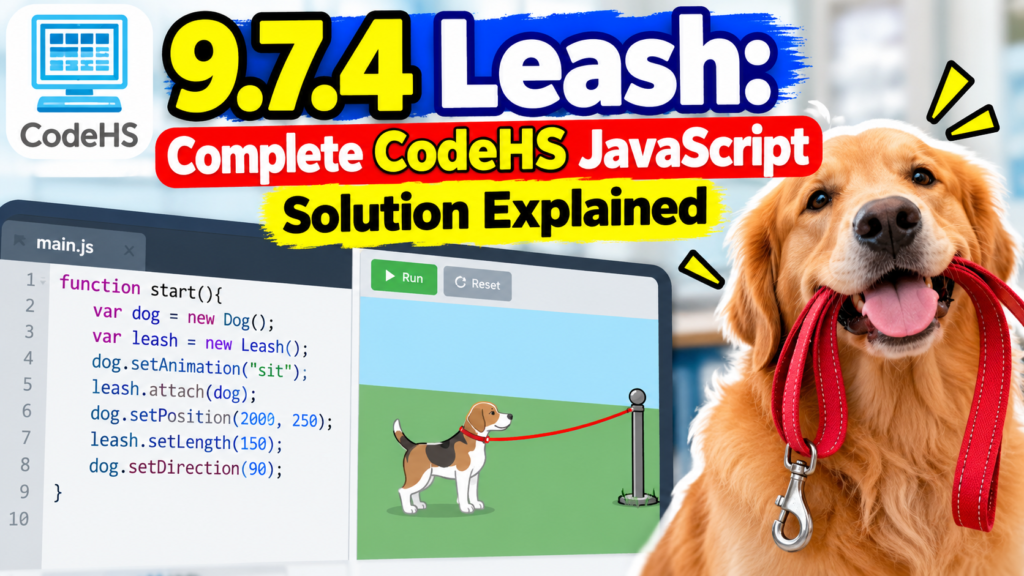
Learning JavaScript graphics becomes easier when you can see your code working. The 9.7.4 Leash activity turns simple mouse movements into an interactive drawing. You’ll learn how to move a circle, stretch a connecting line, and fix common errors.
This guide covers the complete example, explains every important instruction, and explores useful programming techniques. It also shows how event-driven programming supports games, animations, and interactive websites.
What Is 9.7.4 Leash in CodeHS JavaScript?
The 9.7.4 Leash exercise introduces interactive graphics through a moving circle and connecting line. As you move your mouse, the circle follows your pointer. Meanwhile, the line stretches between the circle and a fixed location.
This JavaScript graphics exercise combines graphical object movement with simple mouse events. Instead of drawing static shapes, you create objects that respond immediately. The activity introduces useful programming habits that support larger interactive projects.
What Does 9.7.4 Leash Actually Mean in CodeHS?
The numbers identify an exercise within a particular CodeHS course structure. They help students locate activities inside lessons and units. The word Leash describes the visual connection between a movable object and its stationary anchor.
However, CodeHS exercise numbers can differ across CodeHS curriculum versions. Your classroom instructions remain the best reference. The name doesn’t represent a JavaScript command or a special graphics setting.
Understanding the Main Objective of 9.7.4 Leash
The main goal involves keeping two connected graphical objects visually aligned. One point remains stationary while a circle moves across the screen. A line follows the circle without losing its original anchor.
Think about holding a dog’s leash. Your hand represents the fixed starting point while the dog represents the moving circle. This familiar visual connection explains why both objects must share the same moving coordinates.
How Does the 9.7.4 Leash Exercise Actually Work?
First, the program creates a circle and line on a graphical canvas. It places both objects near the center. Next, a mouse movement handler watches for pointer changes and updates their positions.
Whenever you move the mouse, mouse coordinates determine the circle’s new location. The moving line endpoint receives those same values. This produces synchronized movement without creating additional objects during every event.
Complete 9.7.4 Leash CodeHS JavaScript Solution Explained
The following 9.7.4 Leash solution demonstrates the basic interaction using familiar CodeHS graphics methods. It creates the graphical objects once and registers a mouse movement callback. Check your assignment’s required colors, dimensions, and object names before submitting.
var BALL_RADIUS = 30;
var ball;
var line;
function start() {
var centerX = getWidth() / 2;
var centerY = getHeight() / 2;
line = new Line(centerX, centerY, centerX, centerY);
line.setColor(Color.black);
add(line);
ball = new Circle(BALL_RADIUS);
ball.setPosition(centerX, centerY);
ball.setColor(Color.yellow);
add(ball);
mouseMoveMethod(leash);
}
function leash(e) {
var mouseX = e.getX();
var mouseY = e.getY();
ball.setPosition(mouseX, mouseY);
line.setEndpoint(mouseX, mouseY);
}
The JavaScript functions divide the work into setup and movement. start() creates the objects while leash(e) handles graphica
l object updates. Both use shared object references, allowing the circle and line to move together.
How to Solve 9.7.4 Leash Step by Step
A reliable step-by-step JavaScript solution starts with proper program setup. Define the radius, create shared variables, and calculate the canvas center. Then create the circle and line before registering mouse events.
Afterward, connect mouse input to the required object updates. Test each change before moving forward. This method makes errors easier to identify and helps you understand the complete program rather than memorize instructions.
Step 1: Define the Circle Radius Correctly
Set BALL_RADIUS to 30 before creating the circle. This value controls the circle radius, producing a circle diameter of 60 coordinate units. Keeping the measurement in one variable makes future size adjustments easier.
Step 2: Declare Your Circle and Line Variables
Declare ball and line outside both functions. These global variables preserve the object references needed during mouse movement. If you declare them only inside start(), the separate handler cannot access those local declarations directly.
Step 3: Initialize Graphics Inside the Start Function
Use start() as the initialization function for your graphical objects. Create the line, create the circle, and register the event handler here. This separates initial construction from later movement and prevents unnecessary object creation.
Step 4: Calculate the Exact Canvas Center Coordinates
Divide getWidth() and getHeight() by two to calculate the canvas center. These canvas coordinate calculations adapt automatically to different dimensions. For example, a 400-by-400 canvas has its center at (200, 200).
Step 5: Create the Leash Line Using Coordinates
Use the line constructor with four values: new Line(centerX, centerY, centerX, centerY). Both endpoints initially share the center. This creates a zero-length line that stretches when the mouse starts moving.
Step 6: Set Line Colors and Display Objects
Call line.setColor(Color.black) to choose the line color. Then use add(line) to place it on the canvas. Proper graphics display requires adding the created object rather than constructing it alone.
Step 7: Create the Circle With Proper Positioning
Create the ball using a new Circle(BALL_RADIUS). Next, call ball.setPosition(centerX, centerY) for accurate circle positioning. Set its color to yellow and add it afterward. This supports clear object alignment with the connecting line.
Step 8: Register the JavaScript Mouse Movement Handler
Register mouseMoveMethod(leash) after creating both objects. This connects the mouse movement handler to the callback function. Pass the function name without parentheses because the graphics system must call it when movement occurs.
Step 9: Capture Mouse Coordinates From Events
Inside leash(e), read e.getX() and e.getY(). The mouse event object supplies current coordinate information. Store these values in mouseX and mouseY so both graphical objects receive matching positions.
Step 10: Update Circle Position and Line Endpoint
Call ball.setPosition(mouseX, mouseY) to move the circle. Then use line.setEndpoint(mouseX, mouseY) for dynamic line updates. Matching values preserve graphical object synchronization while the opposite line endpoint remains fixed.
Understanding Mouse Movement Events in CodeHS JavaScript
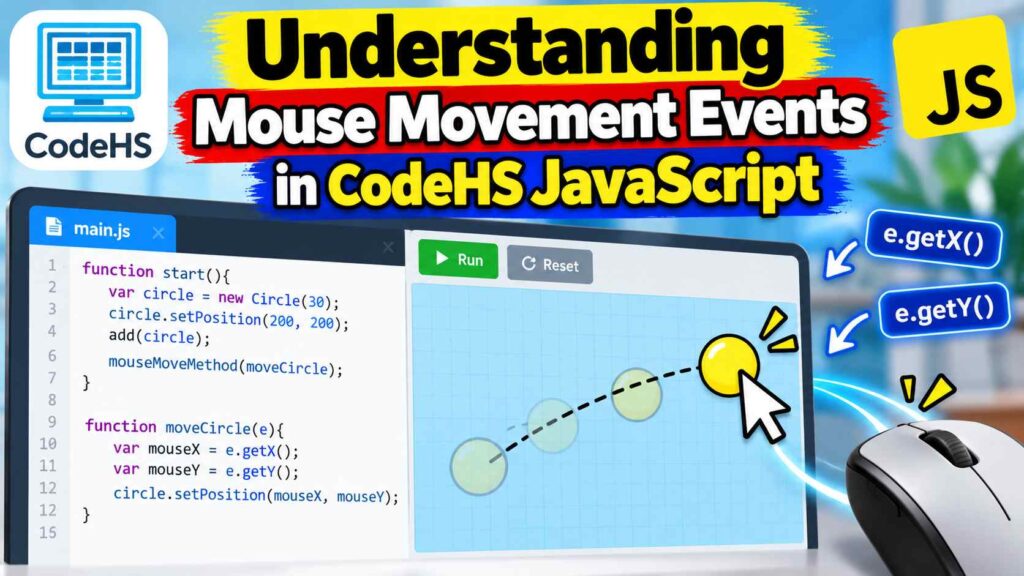
Mouse movement introduces event-driven programming through a practical visual example. Instead of checking pointer positions continuously inside a loop, the graphics environment detects movement and invokes a registered function.
This approach supports interactive program behavior across many applications. Other programming events, including a keyboard press, button click, or touchscreen tap, can trigger different actions when the environment supports them.
How Mouse Movement Triggers the Event Handler
When the pointer moves across the canvas, the graphics system calls leash(e). The registered event handlers receive movement details through the event object. The function then updates both objects using the latest position.
How JavaScript Tracks Mouse Position in Real Time
The handler reads e.getX() and e.getY() whenever movement occurs. These pointer coordinates support real-time object movement within the canvas. Actual update frequency depends on the browser, device, and graphics environment.
How X and Y Coordinates Control Leash Movement
The X coordinate controls horizontal position while the Y coordinate controls vertical position. In typical CodeHS graphics, increasing X moves right. Increasing Y moves downward because the coordinate origin sits near the upper-left corner.
For example, moving from (200, 200) to (300, 100) shifts right and upward. Both X and Y values must match the circle’s center. This shared coordinate system keeps the leash accurately connected.
| Mouse position | Circle movement | Line behavior |
| (200, 200) | At center | Zero length |
| (300, 100) | Right and upward | Stretches diagonally |
| (100, 300) | Left and downward | Changes direction |
| (200, 350) | Downward | Extends vertically |
Why the Circle and Line Must Stay Connected
The leash works because its line endpoint matches the circle’s center. If these coordinates differ, a visible gap appears. Consistent coordinate synchronization creates the impression that separate objects form one connected structure.
This principle also supports interactive drawing applications and diagramming tools. For instance, a diagram editor can keep a connector attached while users move a shape. Both systems depend on accurate shared coordinates.
Common 9.7.4 Leash Errors and Their Fixes
Most common coding mistakes involve missing handlers, incorrect coordinates, or inaccessible variables. Effective programming troubleshooting begins by checking whether each object appears before testing movement. Small checks reveal problems faster than changing everything.
A useful CodeHS debugging routine separates setup, input, and movement. Verify each stage independently. Then compare your implementation with the assignment instructions because course versions may require different properties.
Why Your Circle Does Not Follow Mouse Movement
A stationary circle often indicates an unregistered callback or incorrect event coordinates. Check mouseMoveMethod(leash) and ball.setPosition(mouseX, mouseY). During testing mouse movement, confirm that the pointer actually moves inside the graphics canvas.
How to Fix a Leash Line That Stays Still
A stationary line usually means its endpoint never changes. Check line.setEndpoint(mouseX, mouseY) and confirm the values match the circle’s coordinates. These line endpoint errors interrupt dynamic line movement even when the circle moves correctly.
Fixing Undefined Variables and JavaScript Reference Errors
An undefined variable error can occur when the handler cannot access the ball or line. Review variable scope and initialization order. Declare shared variables outside the functions and assign their graphical objects before registering the handler.
Why Your Leash Line Has Zero Length
An invisible line can be normal at startup. Both endpoints initially occupy the same position, producing a zero-length line. Move the mouse to extend it. If nothing changes, inspect the handler and endpoint update.
Fixing Circle and Line Endpoint Alignment Problems
A visible gap usually means the objects use different coordinates. Compare ball.setPosition() with line.setEndpoint() and verify their arguments. Correct coordinate alignment maintains the circle and line connection across every mouse position.
Preventing Duplicate Circles and Lines During Movement
Creating objects inside the handler causes duplicate circles and duplicate lines. Each mouse event may add another shape. Initialize both objects once and update their positions afterward. This avoids unwanted trails and improves graphics performance.
How Incorrect Capitalization Breaks CodeHS Graphics Methods
JavaScript distinguishes uppercase and lowercase letters. Writing getx() instead of getX() causes problems because the method names differ. Correct JavaScript syntax and case-sensitive JavaScript rules matter throughout your graphics program.
How to Test Your 9.7.4 Leash JavaScript Solution
Good code testing begins with the program’s initial appearance. Run your code and confirm both objects load correctly. Then move the pointer toward every canvas corner. Watch whether the circle and line remain connected.
Next, try quick turns, slow movements, and diagonal paths. These JavaScript graphics testing techniques reveal alignment problems. Check that the fixed endpoint stays still and the circle follows the pointer without leaving unwanted shapes.
Why Creating Graphics Objects Once Improves Performance
Efficient object creation keeps interactive programs responsive. Creating circles repeatedly wastes memory and clutters the screen. Instead, initialize each object once and change its position whenever the mouse moves.
This object creation versus object updating approach improves graphics performance and code clarity. It also reduces unnecessary rendering work. As projects grow, reusing existing objects becomes especially important for maintaining smooth animations.
Essential JavaScript Skills Learned From the Leash Exercise
Small graphics projects teach surprisingly useful JavaScript programming concepts. You practice functions, coordinates, variables, and events within one visual activity. Every mouse movement demonstrates how separate instructions cooperate.
These beginner programming skills also strengthen programming logic. Once you understand the relationship between input and movement, building more advanced interactive programs becomes easier.
Understanding JavaScript Functions Through Interactive Graphics Projects
JavaScript functions organize instructions into reusable sections. The start() function prepares the objects while leash(e) handles movement. This division makes interactive graphics programming easier to understand, maintain, and debug.
Learning Variable Scope With Circle and Line Objects
Variable scope determines where your code can access stored information. Shared global variables allow separate functions to use the same circle and line. Meanwhile, local variables hold temporary coordinates during each mouse event.
Mastering Canvas Coordinates for Accurate Object Positioning
Accurate canvas coordinates determine where graphical elements appear. Use getWidth() and getHeight() to calculate the center. Then apply coordinate-based graphics principles to position objects consistently across different canvas dimensions.
Understanding Event Driven Programming Through Mouse Interactions
Event-driven programming responds to user actions rather than following only a fixed sequence. A mouse movement handler receives new coordinates and updates the display. Similar callbacks, power buttons, menus, and interactive websites.
Updating Existing Graphics Objects Without Recreating Them
Efficient graphical object updates change existing objects instead of constructing replacements. Methods such as setPosition() and setEndpoint() support object manipulation without unnecessary duplication. This pattern helps keep animations responsive and code organized.
Practical Real World Applications of Leash Programming Concepts
The same techniques appear throughout modern interactive software. Drawing programs follow cursor movements while diagram editors maintain connections between shapes. Games also use coordinate changes to control characters and visual effects.
Understanding connected object movement helps you recognize these shared patterns. Whether building a simple animation or an advanced interface, accurate positioning and event handling remain essential.
Building Interactive Drawing Tools With Mouse Events
Interactive drawing tools use pointer positions to place shapes and draw paths. For example, a sketching application can connect consecutive mouse locations. Adding dragging behavior allows users to reposition objects while preserving their connections.
Creating Beginner JavaScript Games With Moving Objects
Beginner JavaScript games often use mouse input to control characters or aiming markers. A moving target can follow the cursor while a connecting line indicates direction. These interactive game mechanics build directly upon leash-style movement.
Designing Smooth Animations Using Dynamic Line Updates
Dynamic line updates help create moving connections between objects. A rotating line can represent an aiming guide or mechanical arm. Smooth results depend on consistent coordinate updates and sensible rendering behavior.
Developing Visual Learning Tools for Coordinate Systems
Visual learning tools make abstract mathematics easier to understand. An interactive coordinate display can show how horizontal and vertical movements affect positions. These interactive mathematics examples connect programming with geometry through immediate visual feedback.
Expert Tips to Master the CodeHS Leash Exercise Faster
Successful programming troubleshooting starts with one change at a time. Check object creation before testing events. Next, verify coordinates and method names. Avoid changing several instructions simultaneously because that makes errors harder to trace.
Another useful programming best practices habit involves meaningful variable names. Keep your code explanation close to the actual behavior. Experiment with different positions and colors only after the original interaction works correctly.
Is the Leash Exercise Difficult for JavaScript Beginners?
This beginner JavaScript exercise may initially feel challenging because several concepts work together. You must understand objects, functions, coordinates, and events. However, each individual operation remains relatively simple.
The best JavaScript learning guide approach involves learning each concept separately. Start with a stationary circle. Add the line next. Finally, introduce mouse movement and connect both objects through matching coordinates.
Does the Leash Exercise Differ Across CodeHS Courses?
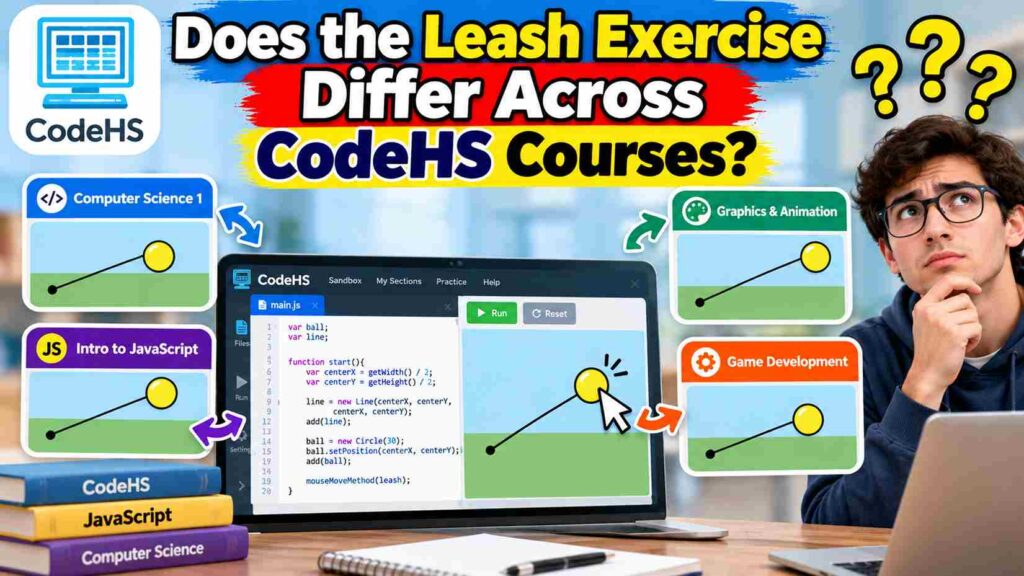
Different CodeHS curriculum versions may organize similar activities under different exercise numbers. Lesson names, starter code, and specific requirements can also vary. Therefore, avoid assuming every online example matches your classroom assignment.
Check your CodeHS assignment requirements before submitting a solution. Compare object properties, expected movement, and available methods. The underlying JavaScript graphics principles remain useful even when individual instructions change.
Final Thoughts on Mastering 9.7.4 Leash Successfully
Mastering this activity builds confidence with JavaScript graphics concepts and programming fundamentals. The central principle is simple: create objects once and update their positions using shared mouse coordinates. This keeps the visual connection intact.
Beyond classroom exercises, these reusable programming skills support animations, drawing applications, and games. Keep experimenting with coordinates, event handlers, and object properties. Each small improvement strengthens your understanding of interactive programming.
FAQs:
1. What is 9.7.4 Leash in CodeHS?
The 9.7.4 Leash exercise is a JavaScript graphics activity where a circle follows the mouse while a line connects it to a fixed point.
2. How do you solve 9.7.4 Leash in CodeHS?
Create a circle and line, register a mouse movement handler, and update both objects using the mouse’s X and Y coordinates.
3. Why is my CodeHS Leash code not working?
Common causes include incorrect method names, missing variables, unregistered mouse events, or incorrect coordinates. Check your code for these errors.
4. What does mouseMoveMethod() do in CodeHS?
The mouseMoveMethod() function detects mouse movement and calls a registered function to update graphical objects based on the pointer’s position.
5. Why does the Leash line follow the circle?
The line follows the circle because setEndpoint() updates its moving endpoint using the same coordinates as the circle’s center.
6. What is the purpose of setPosition() in Leash?
The setPosition() method moves the circle to specific X and Y coordinates, allowing it to follow the mouse pointer.
7. Why is the Leash line invisible at first?
The line starts with both endpoints at the same position, giving it zero length. It becomes visible when the mouse moves.
8. Can I change the circle’s color and size in Leash?
Yes, you can modify BALL_RADIUS to change its size and use setColor() to customize its appearance.
9. What JavaScript concepts are used in 9.7.4 Leash?
The exercise teaches mouse events, functions, variables, canvas coordinates, graphical object movement, and event-driven programming.
10. Is the 9.7.4 Leash solution the same for every CodeHS course?
Not always. CodeHS courses may have different requirements, so check your assignment instructions before using any JavaScript solution.
Continue Reading
Environmental Control Technology: Complete Guide to Smart Systems
Cross Platform Mobile App Development Services: Complete Guide