
Introduction
Safe CPU Temps While Gaming is one of the most important topics every PC gamer should understand. Whether you’re playing competitive shooters, open-world RPGs, or strategy games that push your processor to its limits, your CPU temperature directly affects performance, stability, and long-term hardware health. Many gamers worry when they see temperatures rising into the 70s or 80s Celsius — but what is actually safe, and when should you be concerned?
In this complete guide, we’ll break down everything you need to know about CPU temperatures while gaming. You’ll learn what temperature ranges are normal, what causes overheating, how to monitor your system, and practical steps to keep your gaming PC running cool and efficient. By the end, you’ll know exactly how to maintain optimal CPU health during intense gaming sessions.
Why CPU Temperature Matters in Gaming
Your CPU (Central Processing Unit) handles essential tasks such as game logic, physics calculations, AI processing, background applications, and system communication. When gaming, your processor works significantly harder than during everyday browsing or document editing.
Heat is a natural byproduct of CPU activity. The more power your processor uses, the more heat it generates. If that heat isn’t managed properly, it can lead to:
- Performance throttling
- Game crashes
- System instability
- Reduced hardware lifespan
- Permanent component damage
Modern CPUs include built-in thermal protection systems, but consistently high temperatures can still reduce long-term durability. That’s why understanding safe temperature ranges is essential for every gamer.
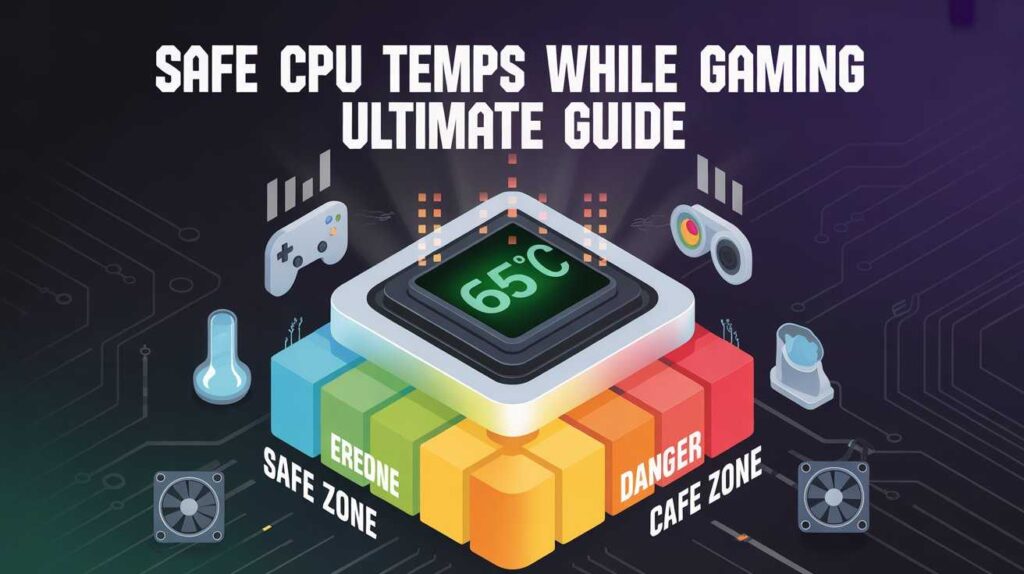
What Are Safe CPU Temps While Gaming?
Normal Temperature Range
For most modern processors:
- Idle Temperature: 30°C – 45°C
- Light Use: 45°C – 60°C
- Gaming Load: 60°C – 80°C
- High but Still Safe: 80°C – 85°C
- Concerning Range: 90°C and above
Generally, 60°C to 80°C during gaming is considered safe for most CPUs.
Maximum Temperature Limits
Every CPU model has a maximum safe operating temperature called TjMax (Thermal Junction Maximum). For most modern Intel and AMD processors, this is typically between 95°C and 105°C.
However, just because a CPU can reach 95°C doesn’t mean it should operate there regularly. Sustained temperatures above 85°C may shorten lifespan and trigger throttling.
Intel vs AMD Gaming Temperature Differences
Different CPU brands have slightly different thermal behavior.
Intel CPUs
Intel processors generally:
- Run cooler at stock speeds
- Have lower power draw in some models
- Start thermal throttling near 100°C
Gaming temps: 65°C – 80°C are common.
AMD Ryzen CPUs
AMD Ryzen processors:
- Often run slightly warmer
- May boost aggressively under load
- Have TjMax around 95°C
Gaming temps: 70°C – 85°C are typical and often normal for Ryzen chips.
Always check your specific model’s manufacturer specifications.
What Causes High CPU Temperatures While Gaming?
Several factors contribute to rising CPU temperatures:
1. Poor Airflow
If your PC case doesn’t have proper intake and exhaust fans, heat gets trapped inside.
2. Dust Buildup
Dust acts as insulation, preventing efficient heat dissipation.
3. Weak CPU Cooler
Stock coolers are sometimes insufficient for high-performance gaming.
4. Old or Improper Thermal Paste
Thermal paste transfers heat from the CPU to the cooler. If it dries out or is applied poorly, temperatures increase.
5. Overclocking
Overclocking boosts performance but increases voltage and heat output.
6. High Ambient Room Temperature
Hot room environments raise internal system temperatures.
How to Monitor CPU Temperature While Gaming
Monitoring is essential. Here are reliable tools:
- HWMonitor
- Core Temp
- MSI Afterburner
- Ryzen Master (for AMD users)
- Intel XTU (for Intel users)
While gaming, keep the temperature overlay visible. This helps identify spikes during intense scenes.
Signs Your CPU Is Overheating
Overheating often shows warning signs before failure:
- Sudden FPS drops
- Stuttering during gameplay
- Random shutdowns
- Blue screen errors
- Loud fan noise
- System restarts
If you notice these alongside temperatures above 90°C, action is required.
Is 85°C Safe While Gaming?
Yes — in many cases, 85°C is still within acceptable limits under heavy gaming loads. However:
- If it frequently stays at 85°C+, consider improving cooling.
- If it spikes to 90°C+, investigate immediately.
Consistency matters more than brief spikes.
How to Lower CPU Temperatures While Gaming
Improve Case Airflow
- Add intake fans at the front
- Add exhaust fans at the back/top
- Keep cables organized
Upgrade Your CPU Cooler
- Air coolers with larger heatsinks
- All-in-One (AIO) liquid cooling systems
Reapply Thermal Paste
Replace thermal paste every 2–3 years.
Clean Your PC Regularly
Use compressed air to remove dust.
Undervolt Your CPU
Undervolting reduces voltage without sacrificing much performance.
Adjust Fan Curves
Increase fan speeds earlier in the temperature curve.
Air Cooling vs Liquid Cooling for Gaming
Air Cooling
- Affordable
- Reliable
- Easy to install
- Great for most gamers
Liquid Cooling
- Better for overclocking
- Quieter at high loads
- More efficient heat dissipation
Most gamers don’t need liquid cooling unless pushing extreme performance.
Does Gaming Damage Your CPU?
Gaming itself does not damage a CPU if temperatures remain within safe limits. Modern CPUs are built to handle sustained loads. The danger comes from:
- Poor cooling
- Constant overheating
- High voltage overclocking
With proper thermal management, your CPU can last many years.
How Long Can a CPU Run at 80°C?
A CPU can safely operate at 80°C for extended periods. However:
- Sustained 85–90°C may reduce longevity.
- Staying below 80°C is ideal for long-term health.
Think of temperature like engine heat — occasional high revs are fine, but constant overheating shortens lifespan.
Does Resolution Affect CPU Temperature?
Yes, but indirectly.
- Lower resolutions (1080p) often stress the CPU more.
- Increasing the resolution to 1440p or 4K places greater demand on the graphics card.
If your CPU is overheating at 1080p, raising resolution may reduce CPU strain in some games.
Thermal Throttling Explained
Thermal throttling occurs when the CPU automatically reduces speed to lower temperature. Signs include:
- Sudden FPS drops
- Lower clock speeds
- Performance inconsistency
It’s a protective mechanism — but a sign that cooling needs improvement.
Safe CPU Temps While Gaming on Laptops
Gaming laptops run hotter due to limited airflow.
Typical safe gaming temps for laptops:
- 70°C – 90°C
Laptops often reach higher temps but are engineered for it. However, consistent 95°C+ is concerning.
Tips for laptop gamers:
- Use a cooling pad
- Clean vents regularly
- Avoid soft surfaces
When Should You Worry?
You should take action if:
- Temperatures consistently exceed 90°C
- Your system shuts down
- You experience frequent throttling
- You smell burning or see instability
Short spikes are fine. Constant overheating is not.
Ideal CPU Temperature Target for Gamers
For optimal balance:
- Aim for 65°C – 75°C
- Under 80°C is excellent
- 80–85°C is acceptable
- Above 90°C requires attention
This ensures maximum performance and long lifespan.
Final Thoughts
Understanding Safe CPU Temps While Gaming ultimately comes down to balance. Modern processors are designed to handle demanding workloads, and seeing temperatures in the 70°C to 80°C range during intense gaming sessions is completely normal. What truly matters is consistency and proper thermal management. If your system stays within recommended ranges and avoids prolonged exposure above 85°C–90°C, your CPU can deliver reliable performance for years without issue.
The key takeaway is prevention, not panic. Monitor your temperatures regularly, maintain proper airflow, clean your system, and upgrade cooling when necessary. By staying proactive and informed, you protect both your gaming performance and your hardware investment. With the right setup and smart maintenance habits, you can enjoy smooth gameplay confidently — knowing your CPU is running safely and efficiently under pressure.
Frequently Asked Questions (FAQs) about Safe CPU Temps While Gaming
1. What are safe CPU temps while gaming?
Safe CPU temps while gaming typically range between 60°C and 80°C under load. Temperatures up to 85°C can still be acceptable, but anything consistently above 90°C requires attention.
2. Is 85°C too hot for a CPU during gaming?
Not necessarily. 85°C can be normal during heavy gaming sessions, especially for high-performance CPUs. However, if your processor frequently stays above this temperature, improving cooling is recommended.
3. At what temperature should I worry about my CPU?
You should start worrying if your CPU consistently exceeds 90°C, experiences frequent throttling, random shutdowns, or performance drops.
4. Is 75°C a good temperature while gaming?
Yes, 75°C is considered an excellent and safe temperature for gaming. It indicates your cooling system is working efficiently.
5. Do Intel and AMD CPUs run at different temperatures?
Yes. Intel CPUs often run slightly cooler at stock settings, while AMD Ryzen processors may operate a bit warmer under load. Both are safe within their specified thermal limits.
6. Can high CPU temperatures reduce lifespan?
Yes. Sustained temperatures above 85°C–90°C over long periods can gradually shorten a CPU’s lifespan, even though modern processors have built-in thermal protection.
7. How can I check my CPU temperature while gaming?
You can monitor temperatures using tools such as HWMonitor, Core Temp, MSI Afterburner, Ryzen Master, or Intel XTU. Many of these tools allow in-game overlays.
8. Does gaming itself damage a CPU?
Gaming does not damage a CPU if temperatures remain within safe limits. The real risk comes from poor cooling, constant overheating, or excessive overclocking.
9. Is liquid cooling necessary for safe gaming temperatures?
Not for most users. A quality air cooler is sufficient for typical gaming loads. Liquid cooling is more beneficial for overclocking or high-end performance systems.
10. How often should I replace thermal paste?
It’s recommended to replace thermal paste every 2–3 years, or sooner if you notice rising temperatures.
11. Why does my CPU run hotter at 1080p than at 1440p or 4K?
At lower resolutions like 1080p, the CPU often works harder because the GPU isn’t fully saturated. Higher resolutions shift more workload to the GPU, potentially lowering CPU strain.
12. Are laptop CPU temperatures different from desktop CPUs?
Yes. Gaming laptops typically run hotter due to compact designs and limited airflow. Temperatures between 70°C and 90°C are common for laptops under load.
13. What is thermal throttling?
Thermal throttling is when the CPU automatically reduces its clock speed to lower temperature and prevent damage. It often causes FPS drops and performance inconsistencies.
14. Can dust cause high CPU temperatures?
Yes. Dust buildup restricts airflow and traps heat inside the case, leading to higher internal temperatures.
15. What is the ideal CPU temperature target for gamers?
For optimal performance and longevity, aim for 65°C to 75°C during gaming. Staying under 80°C is excellent for long-term CPU health.
ALSO READ
BMVX4: Everything You Need To Know In 2026
Private Freight Terminals: Expert Guide 2026
Social Media Silent Scroller Traits & Hidden Patterns