
If you are searching for how to reset Honeywell thermostat, you are likely facing issues such as incorrect temperature readings, WiFi connectivity problems, unresponsive controls, or schedule errors. Resetting your thermostat can solve many common problems quickly and safely. Whether you own a basic non-programmable unit or a smart WiFi-enabled model, this complete guide will walk you through everything in simple, clear steps.
Honeywell thermostats are known for reliability, but like any electronic device, they may occasionally require a reset. In this detailed guide, you will learn different types of resets, model-specific instructions, troubleshooting advice, and safety precautions — all explained in easy-to-understand language.
Why You May Need to Reset Your Honeywell Thermostat
Before learning how to reset the device, it is important to understand why a reset may be necessary.
Common reasons include:
- The thermostat screen is frozen or blank
- The device is not responding to button presses
- WiFi connection is lost
- Incorrect temperature readings
- HVAC system not turning on or off properly
- Schedule settings behaving incorrectly
- After a power outage
- Moving into a new home
- Preparing the thermostat for resale
In many cases, a simple reset restores normal function without requiring professional help.
Types of Honeywell Thermostat Resets
Not all resets are the same. Honeywell thermostats support different reset options depending on the model. Here are the main types:
1. Soft Reset
A simple reboot that restarts the device without deleting settings.
2. Factory Reset
Restores the thermostat to its original factory settings and erases all stored data.
3. WiFi Reset
Clears WiFi information so you can reconnect to a new network.
4. Schedule Reset
Deletes programmed heating and cooling schedules.
5. HomeKit or Smart System Reset
Removes the device from smart home systems.
Knowing which reset you need will prevent unnecessary data loss.
How to Reset Honeywell Thermostat (General Method)
Although steps vary by model, here is a general method that works for many digital Honeywell thermostats:
- Turn off the thermostat.
- Remove it from the wall plate.
- Take out the batteries.
- Wait 30 seconds.
- Reinsert batteries (some models require reversing battery direction for 5 seconds before placing correctly).
- Reattach the thermostat to the wall plate.
- Turn the system back on.
This basic reset often solves minor glitches.
How to Reset Honeywell Thermostat by Model Type
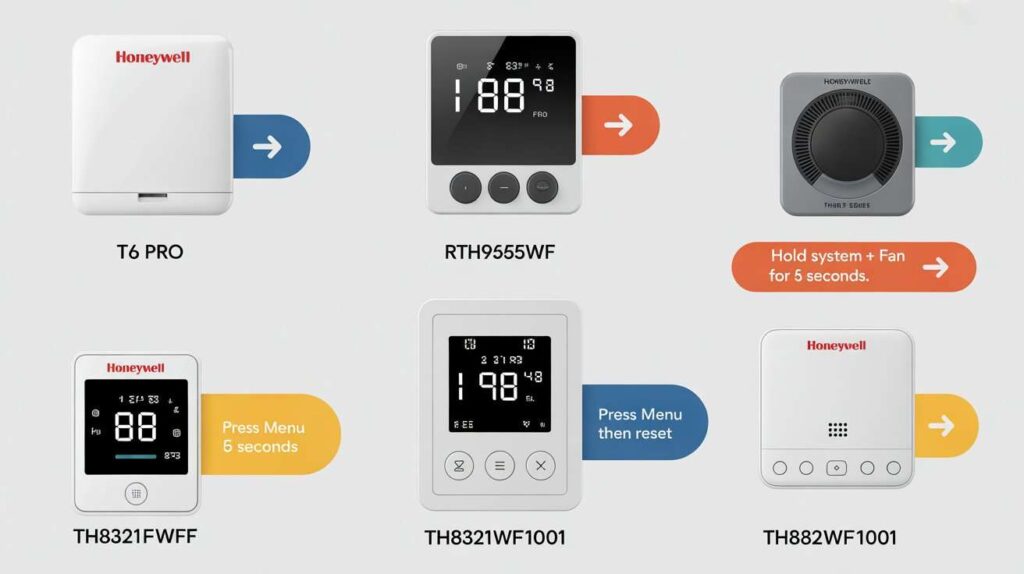
Because Honeywell produces multiple thermostat series, the reset process differs slightly depending on your model.
Resetting Honeywell 1000 and 2000 Series
These are non-programmable thermostats.
Steps:
- Turn off the thermostat.
- Remove it from the wall.
- Remove batteries.
- Insert batteries backwards for 5 seconds.
- Reinsert batteries correctly.
- Mount thermostat back on the wall.
This performs a full reset.
Resetting Honeywell 4000 Series
These are programmable thermostats.
Factory Reset Steps:
- Press and hold the “Set” and “Run” buttons together.
- Hold for about 5 seconds.
- The screen will reset.
If that does not work, use the battery method mentioned above.
Resetting Honeywell 6000 Series
This series is very common in homes.
Factory Reset:
- Press and hold the “Fan” button.
- While holding it, press the “Up Arrow.”
- Hold both for 5 seconds.
- The screen will display reset options.
- Use arrows to select reset.
- Press “Done.”
Resetting Honeywell 8000 Series
These are advanced touchscreen thermostats.
Factory Reset Steps:
- Press the “System” button.
- Hold the blank center area of the screen for 5 seconds.
- The installer menu will appear.
- Enter reset code (usually 0710).
- Select “Factory Reset.”
- Confirm.
Always double-check your model number before proceeding.
Resetting Honeywell WiFi Thermostats
Smart thermostats require a slightly different approach.
WiFi Reset Method:
- Press “Menu.”
- Scroll to “WiFi Setup.”
- Select “Reset.”
- Confirm.
This clears WiFi settings but keeps other configurations.
Factory Reset for WiFi Models:
- Go to “Menu.”
- Select “Reset.”
- Choose “Factory.”
- Confirm reset.
This deletes all stored information.
How to Reset Honeywell Thermostat Without Removing It
Some models allow reset directly from the control panel.
Common method:
- Press “Menu.”
- Navigate to “Reset.”
- Select desired reset type.
- Confirm.
If your screen is responsive, this is the easiest way.
What Happens After a Factory Reset?
When you perform a full factory reset:
- All schedules are deleted
- WiFi settings are erased
- Temperature preferences are removed
- Smart home connections are disconnected
- The device returns to default settings
You will need to reconfigure everything.
Troubleshooting After Reset
Sometimes the thermostat still does not work properly even after resetting. Here are possible reasons:
1. Dead Batteries
Replace batteries with fresh ones.
2. Wiring Issues
Loose or incorrect wiring can cause malfunctions.
3. HVAC System Problems
The issue may not be the thermostat but the heating or cooling system.
4. Circuit Breaker Trip
Check your electrical panel.
5. Incorrect System Settings
Ensure heating/cooling mode is selected properly.
If problems continue, professional inspection may be required.
Safety Precautions Before Resetting
Before attempting to reset your thermostat:
- Turn off power to HVAC system
- Avoid touching internal wiring
- Do not force buttons
- Keep thermostat dry
- Follow manufacturer instructions
Safety should always come first.
When You Should Not Reset Your Thermostat
Avoid resetting if:
- The thermostat is under warranty repair
- You are unsure about your model
- Wiring has recently been modified
- You suspect electrical damage
Instead, consult a technician.
How to Reset Honeywell Thermostat for New Homeowners
If you have moved into a new home, resetting the thermostat ensures you remove previous owner settings.
Recommended steps:
- Perform factory reset.
- Set the correct date and time.
- Configure heating/cooling system type.
- Program new schedule.
- Connect to WiFi if applicable.
This gives you full control.
How to Reprogram After Reset
After resetting:
- Set time and date.
- Choose heating or cooling mode.
- Program temperature schedule.
- Adjust fan settings.
- Connect to WiFi (if applicable).
Take your time configuring comfort preferences.
Common Mistakes to Avoid
- Resetting when batteries are low
- Performing factory reset unnecessarily
- Ignoring model-specific instructions
- Forgetting WiFi password
- Skipping HVAC power shutdown
Avoiding these mistakes saves time.
Benefits of Resetting Your Thermostat
- Improves performance
- Fixes minor software glitches
- Restores temperature accuracy
- Fixes WiFi issues
- Clears unwanted schedules
- Prepares device for resale
Resetting is often the fastest solution.
Final Thoughts
Learning how to reset Honeywell thermostat models correctly can save you both time and unnecessary repair costs. In many cases, a simple reset is all that’s needed to fix frozen screens, WiFi connection errors, temperature inaccuracies, or schedule problems. By understanding the different types of resets — whether it’s a soft reset, WiFi reset, or full factory reset — you can choose the right solution without accidentally deleting important settings. Taking a few careful steps, following model-specific instructions, and observing basic safety precautions ensures the process is smooth and risk-free.
However, while resetting is often an effective troubleshooting step, it is not always the final answer. If your thermostat continues to malfunction after a proper reset, the issue may lie within the wiring, power supply, or HVAC system itself. In such situations, seeking professional assistance is the safest approach. With the right knowledge and a careful method, you can confidently manage your Honeywell thermostat, maintain consistent indoor comfort, and keep your heating and cooling system running efficiently year-round.
FAQs about how to reset honeywell thermostat
1. How do I know if I need to reset my Honeywell thermostat?
You may need to reset your thermostat if the screen is frozen, the device is unresponsive, the WiFi connection keeps dropping, temperature readings are inaccurate, or your HVAC system is not turning on or off correctly. A reset is often the first troubleshooting step.
2. What is the difference between a soft reset and a factory reset?
A soft reset simply restarts the thermostat without deleting your saved settings. A factory reset, however, restores the device to its original settings and erases schedules, WiFi connections, and customized preferences.
3. Will resetting my Honeywell thermostat delete my schedule?
Only a factory reset or schedule reset will delete programmed schedules. A soft reset typically keeps all your existing settings intact.
4. Can I reset my Honeywell thermostat without removing it from the wall?
Yes, many models allow you to reset directly from the menu settings. You can navigate to the “Reset” option on the control panel and select the type of reset you need.
5. Why is my Honeywell thermostat screen blank?
A blank screen is often caused by dead batteries, a tripped circuit breaker, or a power issue. Try replacing the batteries and checking your electrical panel before performing a full reset.
6. Does resetting fix WiFi connectivity problems?
Yes, performing a WiFi reset can clear old network settings and allow you to reconnect to your home network. This is especially useful if you’ve changed your router or WiFi password.
7. Is it safe to reset my thermostat?
Yes, resetting is generally safe as long as you follow the correct steps and turn off power to the HVAC system if required. Avoid touching internal wiring during the process.
8. How long does it take to reset a Honeywell thermostat?
Most resets take less than five minutes. Reprogramming your settings afterward may take a little longer depending on your preferences.
9. What should I do if resetting doesn’t fix the issue?
If problems continue after a reset, the issue may be related to wiring, the HVAC system, or electrical components. In this case, contacting a licensed HVAC technician is recommended.
10. Do all Honeywell thermostat models reset the same way?
No, reset procedures vary by model and series (such as 1000, 4000, 6000, 8000, or WiFi models). Always check your model number and follow the appropriate instructions.
11. Should I reset my thermostat after moving into a new home?
Yes, performing a factory reset ensures all previous settings and schedules are removed so you can configure the thermostat according to your own preferences.
12. Will resetting affect my heating or cooling system?
Resetting only changes the thermostat’s settings. It does not directly damage or alter your HVAC system, though you may need to reconfigure heating and cooling modes afterward.
13. Can low batteries cause thermostat problems?
Yes, weak or low batteries can cause screen glitches, incorrect temperature readings, or system failures. Replacing batteries is often a simple fix before attempting a full reset.
14. Is it necessary to reset my thermostat regularly?
No, resetting should only be done when troubleshooting specific issues. Regular maintenance, such as battery replacement and cleaning, is usually sufficient for normal operation.
ALSO READ
Gosund Smart Plug: Complete Guide and Review
How Illinois Technology Association Powers Statewide Innovation
Explore Cutting Edge Tech Solutions at WaveTech Global Today